
📺 Original Video: 100+ Docker Concepts you Need to Know by Fireship
📅 Duration: 8:28
TL;DR
- Fireship speedruns 100+ Docker concepts, from bare metal hardware all the way to Kubernetes orchestration
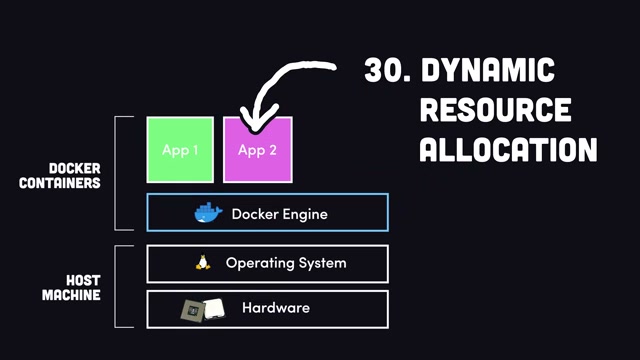
- Containers share the host OS kernel and use resources dynamically, unlike VMs with fixed allocation
- The Dockerfile → Image → Container pipeline is surprisingly simple once you see it in action
- Docker Compose handles multi-container apps, Kubernetes handles planet-scale (but you probably don’t need it)
- Docker Scout baked into Desktop now proactively flags security vulnerabilities per image layer
The Big Idea
▶00:00 Containerization solves two problems that have plagued developers forever: “it works on my machine” during local development, and “this architecture doesn’t scale” in production. This video is a firehose tour of everything you need to know, from what a CPU actually does all the way up to Kubernetes clusters.
How It Works
▶00:16 The video starts at the absolute fundamentals. A computer has three things: CPU, RAM, and disk. An operating system sits on top with a kernel that lets applications run. Software used to come in boxes from the store (remember that?), but now everything flows through the network. Your computer is the client, and remote computers called servers deliver the data.
▶01:01 Here’s where things get real. When your app hits millions of users, everything starts breaking: CPU gets exhausted, disk I/O crawls, bandwidth maxes out, and your database chokes. Plus, let’s be honest, you probably wrote some garbage code with race conditions and memory leaks. The question becomes: how do you scale?
▶01:16 Two options. Vertical scaling means beefing up one server with more RAM and CPU, which works until you hit a ceiling. Horizontal scaling means spreading your code across multiple smaller servers, often broken into microservices. But bare metal makes this tricky because resource allocation is rigid. Virtual machines help by running multiple OSes on one machine via a hypervisor, but VM resource allocation is still fixed.
▶02:02 Enter Docker. All applications share the same host OS kernel and use resources dynamically based on actual need. Under the hood, Docker runs a daemon (a persistent background process) that provides OS-level virtualization. Install Docker Desktop and you’re off to the races without messing up your local system.
Building Your First Container
▶02:32 Docker works in three steps. First, write a Dockerfile, which is basically a blueprint for your environment. That Dockerfile gets built into an image containing your OS, dependencies, and code. Upload it to Docker Hub to share with the world. Then run the image as a container, an isolated package that can theoretically scale infinitely.
▶03:03 Containers are stateless. When they shut down, all data inside is gone. That sounds like a downside but it’s actually what makes them portable and free from vendor lock-in across every major cloud platform.
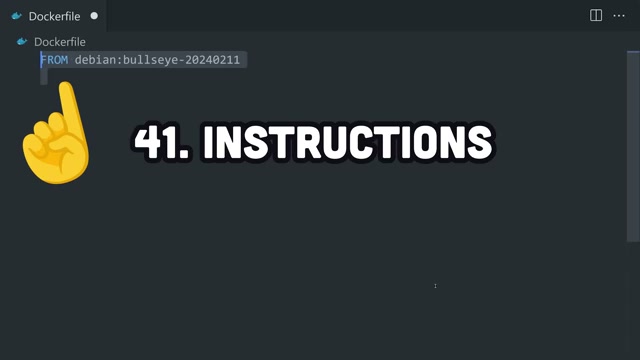
▶03:19 The Dockerfile walkthrough is clean. FROM points to a base image (usually a Linux distro with an optional version tag). WORKDIR sets your source directory. RUN executes commands like installing dependencies. USER creates a non-root user for security. COPY brings your local code into the image. ENV sets environment variables. EXPOSE opens a port. CMD defines the startup command (one per container). You can also add ENTRYPOINT for argument passing, LABEL for metadata, HEALTHCHECK for monitoring, and VOLUME for persistent storage.
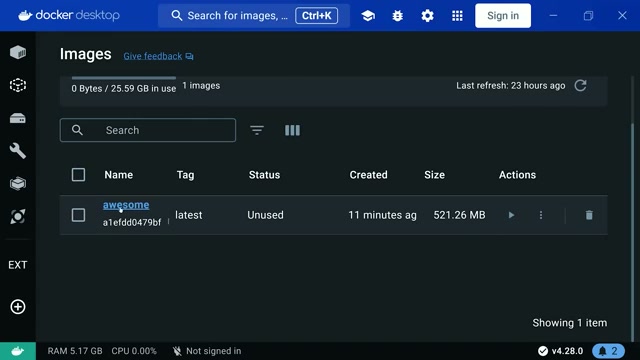
▶04:51 From the terminal, `docker build` with the `-t` flag tags your image with a name. Each instruction creates a layer identified by a SHA-256 hash, and layers get cached. Modify one line in your Dockerfile and only that layer and everything after it rebuilds. The .dockerignore file keeps unwanted files out of your image, similar to `.gitignore`.
Docker Desktop and Security
▶05:37 Docker Scout is a nice touch baked into Desktop. It extracts the software bill of materials from your image, compares it against security advisory databases, and flags vulnerabilities with severity ratings. Proactive security scanning without leaving your IDE, basically.
Running and Managing Containers
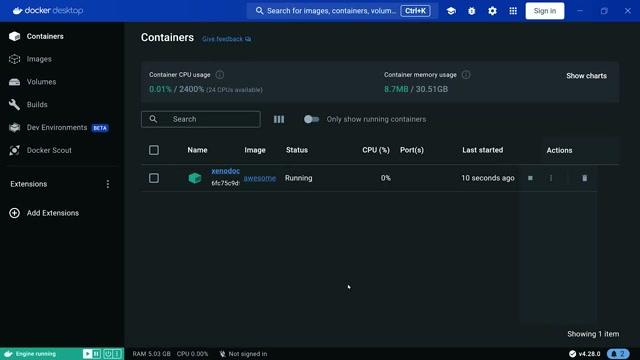
▶05:52 Click Run in Desktop (or `docker run` from the CLI) and your server is live on localhost. `docker ps` shows running and stopped containers. You can inspect logs, browse the filesystem, and even execute commands inside a running container. `docker stop` shuts down gracefully, `docker kill` does it forcefully, and `docker rm` cleans up.
▶06:39 `docker push` uploads to a remote registry for cloud deployment. AWS Elastic Container Service, Google Cloud Run, serverless platforms… take your pick. `docker pull` grabs someone else’s image so you can run their code without touching your local environment.
Why You Should Care
▶07:09 Real applications have multiple services, and that’s where Docker Compose comes in. Define your frontend, backend, and database in a single YAML file. `docker compose up` spins everything up, `down` tears it all down.
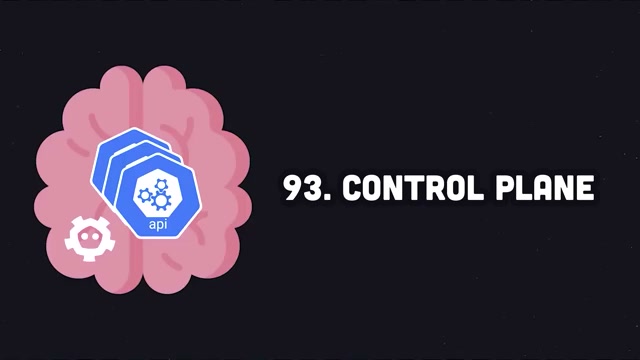
▶07:25 For massive scale, there’s Kubernetes. A control plane manages the cluster. Each node (machine) runs a kubelet and multiple pods, which are the minimum deployable units containing one or more containers. You describe your desired state and Kubernetes auto-scales and self-heals when servers go down.
▶07:56 The honest take here is refreshing: you probably don’t need Kubernetes. It was built at Google based on their internal Borg system and is really only necessary for highly complex, high-traffic systems. If that’s not you, Docker Compose will get you very far.
We try hard to get the details right, but nobody’s perfect. Spot something off? Let us know